
Building
This page covers the basics of creating an exhibit page. It begins with a quick start guide that explains how to log into the WordPress Dashboard, how to create a new Exhibit page, and how to launch the Divi Builder. It ends with a basic explanation of the Divi Builder.
Quick Start
Log into the WordPress Dashboard.
- Visit https://oldsite.coloredconventions.org/wp-login.php
- Type in your username and password where prompted and click login.

After you log into WordPress, you land on your exhibit’s Dashboard. The Dashboard is used to navigate your exhibit site options.
Add a new exhibit page.
- Hover over the “Pages” tab on the Dashboard, and select the “Add New” option.

- Title the page, and hit “Save as Draft.”

To see a list of all your pages, hover over the “Pages” tab and select the “All Pages” option.
Launch the Divi Builder.
- Go to the “Pages” option on the dashboard, and click “All Pages.”

- Find the page you just created. Hover over the name, and then click the “Edit” button.

- Click the “Use the Divi Builder” button.

- When prompted, select the “Browse Layouts” option.

- Navigate to the “Your Saved Layouts” tab in the top menu of the new window.

- Select the “Exhibit Page Standard” from the list.

The Divi Builder
The Divi Interface
After launching the Divi Builder, you start in the “Wireframe” view. To view your exhibit page on different display types, use the view controls on the top right of the Divi Builder.

On the far left is the wireframe view, followed by the zoom out button, and the desktop, the tablet, and the mobile display buttons.
The “Wireframe” View
This view provides a blueprint of your exhibit page, nesting modules, rows, and sections. (Collectively known as layouts).
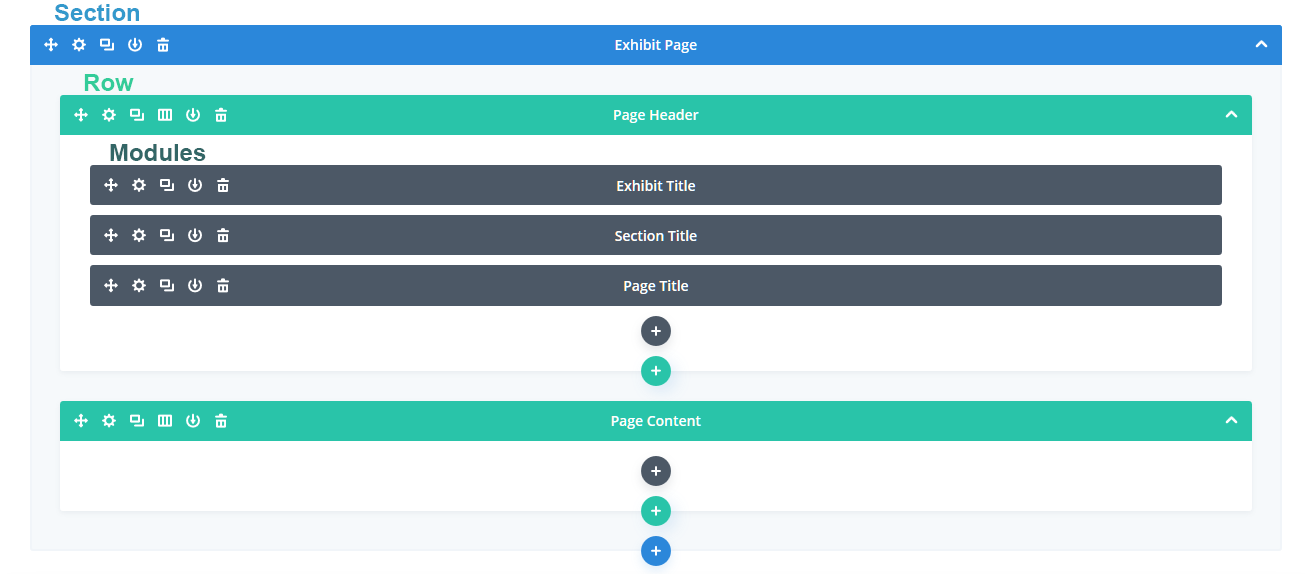
Together, these layouts make up an exhibit page. Continue to “Sections, Rows, and Modules” to learn more about building with these layouts.