
Building
This page provides an overview of sections, rows, and modules. It begins with an explanation of each layout, and ends with the basics of working with them.
Sections
The section is used to contain rows, which in turn house modules. Use sections to break help organize the content of your exhibit page. Sections provide spacing (or padding) above and below the clusters of rows it houses. This helps to visually divide the page into topics.
Rows
Rows are the organizational blocks of your exhibit page. Think of them as module containers, controlling the spacing between groups of content rather than displaying the content itself. Rows are useful for grouping content into topics and subtopics.
Modules
Rows are the organizational blocks of your exhibit page. Think of them as module containers, controlling the spacing between groups of content rather than displaying the content itself. Rows are useful for grouping content into topics and subtopics.
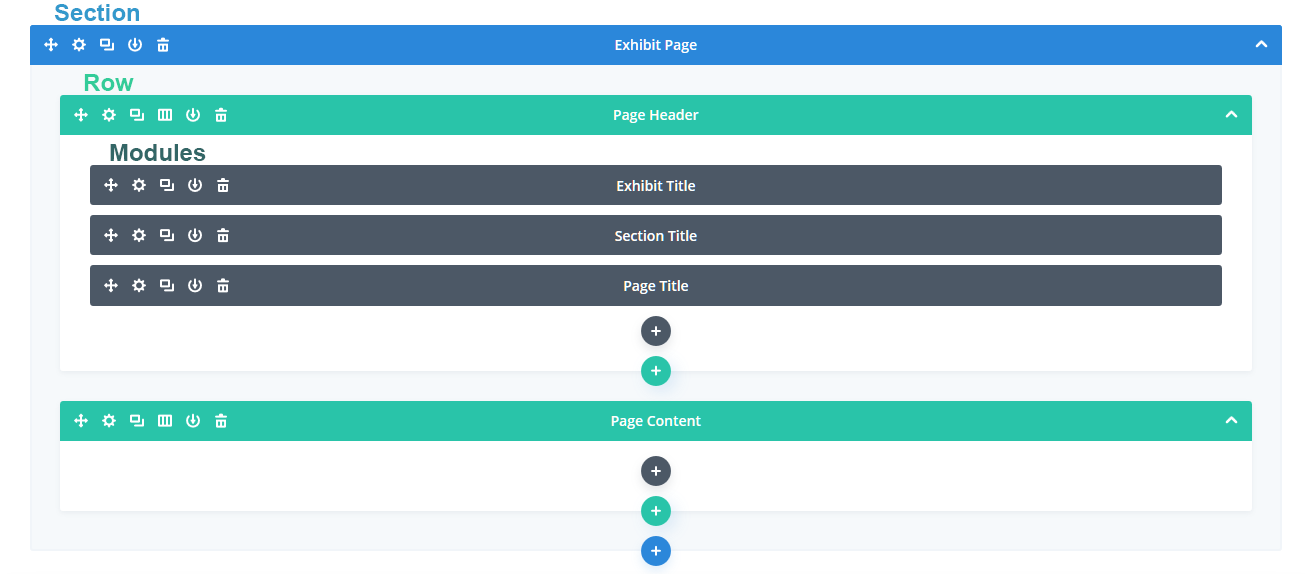
Working with Rows and Modules
Adding a Module
- To add a new module to your exhibit page, click the dark grey “+” outlined in the image below.
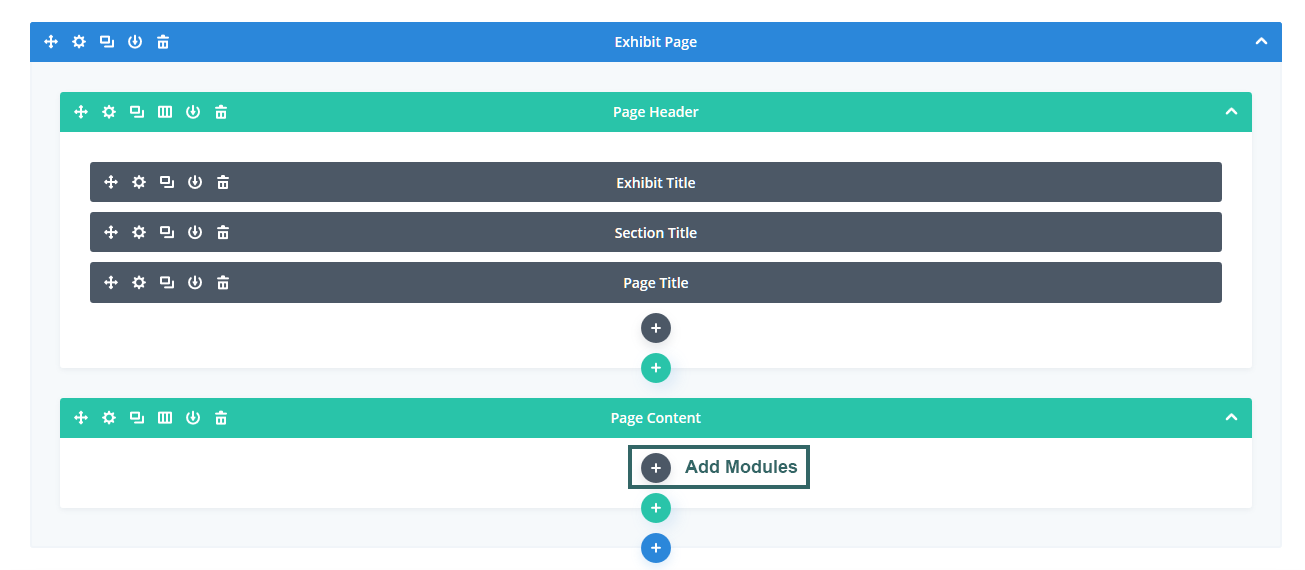
- In the “Insert Module” menu that appears, click on the “Add from Library” tab.

- In the new menu that appears, click on the module you wish to add to your page.
Labeling Practices
To keep your exhibit page wireframe organized and easy to read, it is best practice to label your rows and modules.
Deleting a Module

Rows and Columns
Not only do rows provide spacing (or padding) above and below groups of modules, but rows also provide padding between the modules contained within them. Rows accomplish this with columns.
While different modules display content differently on your exhibit page, they will all look and function uniformly in the Divi Builder “Wireframe” view.
Adding a New Row
Accessing a Module's Settings
In order to add content to a module, you must access its settings. To do so, click on the module’s gear icon (highlighted in red below).

Depending on the type of module, the menu that appears will vary.
These are the basics of modules, to learn more about working with them, continue to “More on Modules.”
Modules are the most basic unit of the exhibit page. You will add your content directly to modules in order to display it on your exhibit page. The type of content you wish to present will determine which module you will use.
Types of Modules
Text (and Image)
This module will house the majority of your content. Use it to add blocks of text (and inline images) to your exhibit page.
Toggle
The Toggle module is very similar to the Text (and Image) module in that it houses text and inline-image content. The difference being the way in which the two modules are displayed. The user interacts with the toggle to display new information, while the Text (and Image) content is always displayed on the page. (This section, “Types of Modules,” is an example of a Toggle).
Section Header + Section Subheader
Like the Text (and Image) module, both of these modules are text modules. Use Section Headers to divide your exhibit page into parts. Use Section Subheaders to organize these into even smaller parts.
iFrame
This module is used to display content from another webpage. This is often useful for data-visualizations that are hosted on another webpage, but that you wish to display on your exhibit page.
Image Slider
This module is best for image heavy data-visualizations that rely on digital movement, like Google Slides. It allows the user to traverse through a series of images using slider buttons.
Gallery
This module is used to display multiple images, or single large images. The difference between a gallery and an inline-image is that the gallery acts as its own section of the page, designed entirely to house pictures. Whereas the Text (and Image) module is designed more for text. You can think of the Gallery as “image first,” and the Text (and Image) module as “text first.”